Melbourne Draw
Utility: Graphics · ZX-Spectrum 48K · 1 players
Melbourne House · 1983 · Pound sterling 8.95
Also known as Supergraficos (English), Supergraficos (English)
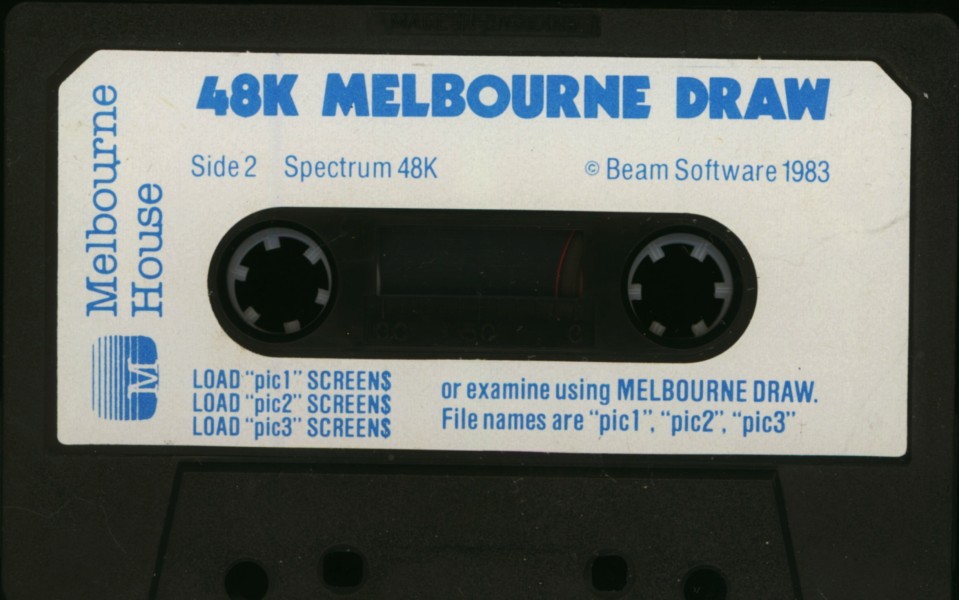
(InvestronicaS.A.).jpg)
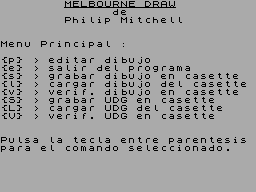
(Microbyte).jpg)
Discussion
Nobody has started a thread about this yet.
Releases
- 1983Melbourne HousePound sterling 8.95
- UnknownInvestronica S.A. Sold as SupergraficosSpanish peseta 2275.00
- 1987Microbyte [ES] Sold as Supergraficos
Play
- MelbourneDraw.tzx.zipTape image English13 KB
- MelbourneDraw.tap.zipTape image English13 KB
- MelbourneDraw(Supergraficos)(InvestronicaS.A.).tzx.zipTape image Spanish5 KB
- MelbourneDraw(Supergraficos)(Microbyte1).tzx.zipTape image Spanish5 KB
Documents
- MelbourneDraw.pdfInstructions English2,406 KB
- MelbourneDraw.txtInstructions English56 KB
- MelbourneDraw(Supergraficos)(Microbyte).pdfInstructions Spanish56 KB
- MelbourneDraw(EN).pdfInstructions English1,197 KB
Files and rights
No permission is on record either way. Screens and pictures are copied here on a take-down basis: if you hold the rights and want something removed, say so and it goes.
Credits
- Philip Mitchellcredited
Sign in to credit somebody, or say what these people did.
Scores
In the magazines
- Sinclair User #211983 · Gilbert Factor7/10
Elsewhere on the web
- WorldOfSpectrum 6 votes9.33
Awards and competitions
Crash Readers Awards 1984
- 3Best Utility Program
In the magazines 39
Your Spectrum #8Oct 1984 · p.36
Peter Freebrey
ART FOR ART'S SAKE There are many graphics toolkits available on the market, each claiming to give the Spectrum the commands it needs to become a 'true' artist. Peter Freebrey finds out if they left the drawing board too soon... Many of the programs now available for the Spectrum have quite amazing title pages and graphics within the program. But, wonder not, for with a fair amount of preparation and care, you too can produce similar effects. That's where graphics toolkits come in. They appear in a number of different guises, but the main reason for our interest is that they all cut down the level of work involved in creating a picture on the screen. They fall into one of two main kinds - those that enable you to draw lines, shapes, blocks of colour and dots anywhere on the screen, and those that provide a simple way of creating your own user-defined graphics; some of these toolkits provide both within the one package. Judging packages against one another is no easy task - because each of the better utilities offers something that the others don't. Either one has to wait for a package that includes all the facilities listed here (unlikely), or else you'll have to choose the one that offers what seems most suited to your present needs. In fact, there's a great deal to be said for having more than one toolkit; that way, with a little care, you can always SAVE from one and LOAD into another - perhaps to take advantage of a specially needed routine. 48K MELBOURNE DRAW Melbourne House £14.95 Although one or two graphics toolkits had appeared before this one was launched, none ever got the widespread publicity of this particular package. Melbourne Draw has now had well over a year to make its mark and it's gained the reputation of being a most effective utility. LOAD it and the program will auto-RUN and display the main menu. This offers several options enabling you to LOAD previously developed pictures or user-defined graphics (UDGs), edit a picture, and also to SAVE and VERIFY. Select 'edit picture' and you're presented with a black screen area - plus a two-line information window at the bottom of the screen. This tells you the current 'mode' (Skip, Set, Reset, Invert, Scroll or Text); you're also told whether you are editing 'screen' or 'attributes'. Below these are two numbers representing the x and y coordinates of the cursor. The numbering system used is identical to that of the Basic PLOT command, even allowing access to the bottom two lines of the screen (so that the bottom left corner coordinates are x=0, y=-16); should you wish to use these two lines, the information window can be moved to the top of the screen. During a Fill command, the window is removed to allow complete filling of any shapes within the window area. To the right of mode and co-ordinates is a four-character block, indicating the degree of magnification you are using. Finally, to the right of this is the section indicating the current INK, PAPER and attribute information. The first step is to clear the screen... that way you can see what you're doing! 'Clear' options (Paper, Ink, Both, Screen, All or None) are activated by Shift (either Caps or Symbol) and the 'R' key. Generally Melbourne Draw is pretty user friendly, although initially, with all the commands to remember, it may seem otherwise! But even then there is help because Melbourne has thoughtfully listed all the commands and their actions on the back cover of the instruction booklet... yes, it's definitely user friendly. Once you've cleared the screen you'll be left with a one-pixel flashing cursor that's roughly in the middle of the work area. This can be moved in any of eight directions using the block of keys under 'Q-W-E'. Pressing Enter will implement the Set mode and if you now move the cursor, a line will be drawn on the screen. Space activates Skip mode - no pixels set; the 'O' key lets you Reset pixels you've Set by mistake. Pressing the 'G' key puts a grid pattern over the screen, enabling you to align any shapes with attribute cells (you may wish to colour consecutive cells differently). The 'M' key magnifies your working image two times, and pressing 'M' again gives you another two-times magnification. This is particularly useful for fine detail and it's also very handy when you're designing UDGs. Melbourne Draw has the novel facility of allowing you to convert any character square (shown by the 'grid' pattern) to a UDG (normally restricted to the Spectrum allocation of keys 'a' to 'u'). Thus, at maximum magnification you have a display of eight by five cells showing. You can create a picture on it and conconvert 21 cells to UDGs, either for use elsewhere in your picture or for use within other programs. You're also given the data for each, should you want to record it for future use. The user can scroll the display in any direction and print text to any character square. The direction that the text is printed can be rotated; that means if you want a word reading down the screen with the letters on their sides, there's no awkward positioning to deal with. Just specify the direction in which text is to be written and key in your characters; UDGs can be dealt with in the same way. Finally, the display can be reversed left to right. Side two of the cassette has several Melbourne House title pages for you to LOAD, alter and otherwise play/learn from. PAINTBOX Print 'N' Plotter Products £9.95 LOAD Paintbox and it'll autoRUN to display the main menu. This serves up a choice of three options: UDG Editor, Precision Plotter and Screen Planner. Opt for UDG Editor and you're given a further menu which allows you to view existing UDGs, create new UDGs (using Paintbox's Drawing Board) or to go to Sketch Pad. Other options allow for LOAD or SAVE of UDGs from/to tape, the final one being to return to the main menu. Option 1 - View UDG Banks - displays four sets of UDGs already in memory; you can choose one of these for use with further options. The four banks are (a) a submarine, (b) a warship, (c) aircraft and (d) buildings, trees and vehicles. Also displayed are any UDGs you've already created using option 2 - Drawing Board. This gives you an eight by eight box within which to create your own UDG characters; you can call from one of the banks of UDGs, or you can call a keyboard character and alter that. Designs can be drawn using either the cursor keys or a Kempston Joystick. Once you ve opted to call a character to create or alter, there's no return... you must then create something, even if it's only a space; there's no way you can break out of this part of the program. Having produced your character, you're then given the opportunity of creating an inverse copy, a mirror image - or even of rotating it through 90 degree steps; whatever it is, just file the result in the bank of UDGs you're working with. There are four banks of 21 UDGs, so it's possible to create a total of 84 different graphic designs; the instructions tell you all you need to know about using banks of UDGs within your own Basic programs. The Sketch Pad option gives you a six by 30 cell (work area) together with a display of existing UDGs. Here you can try various combinations of UDGs (out of any bank of 21) to see what they look like; if you're planning to use several linked together, make sure they're in the same bank! The next selection from main menu is the Precision Plotter. You're given the choice of keyboard cursor keys or, again, the Kempston Joystick, and from there you can either start from a blank screen or LOAD a previous file from tape. First choose INK and PAPER colours - then the decision is yours whether to create a new picture, or return to one held in memory. The cursor keys give movement in four directions. Key 'Q' PLOTs a single pixel point and 'W' DRAWs a line from the end of a previous line or pixel point plotted; key 'E' will Erase the last command and 'F' will Fill with the current INK colour. Fill often misses out portions of the screen so you may have to recall it to fill in the 'holes'. Paintbox also supports Circle ('H') and Arc ('A'). INK colour can be changed at any time but PAPER has to be chosen at the time you first enter Precision Plotter. Over ('N') can be useful for correcting minor mistakes and there's a choice of cursor size - cross hairs for general use and a much smaller, single pixel, for precision work. Shift plus cursor keys moves the cursor at a much slower rate - again for fine, careful positioning. As on Melbourne Draw, the bottom two lines are used as an information window, showing the mode and x/y co-ordinates of the cursor. Here, however, the bottom two lines are not accessible. Should you return to the main menu and then back again to Precision Plotter, key '9' restores the current graphics screen to the display. This is stored in permanent memory, while the program is held in RAM, A COPY of the screen can be printed out on a ZX Printer and the display SAVEd to tape for LOADing later. Final option served up by the main menu is Screen Planner. This gives you the screen display created with Precision Plotter, together with the ability to call from any of the banks of UDGs. These are displayed on the screen with x and y co-ordinates (now for row and column) and INK and PAPER are available at any time; you can experiment with different attributes, although there doesn't appear to be any option to alter BRIGHT and FLASH at this point. Return to Precision Plotter (via the main menu) and you've now got your composite display to work on. The instruction booklet gives details of how to call on these SAVEd screens from various memory locations within your own programs. Remember, though, that each screen SAVEd under these conditions uses 6912 bytes. Print 'n' Plotter has a program - Screen Machine - that can save bytes on graphics screens; we'll be looking at that in a future issue. DRAWMASTER Campbell Systems £6.95 Campbell Systems is probably better known for its database and filing programs, but Drawmaster certainly offers a host of features. The program autoRUNs on LOADing to display a blank work screen with a two-line information window at the bottom (showing the current mode of the 'pen': Trans(parent), Draw, Erase or Over and the current attributes: BRIGHT, PAPER and INK (FLASH is not included - as is fairly obvious from the display). The x and y pixel co-ordinates are indicated in normal Spectrum fashion - that's 0,0 in the bottom left corner - and there's no way of using the bottom two lines of the display (which, of course, is the information window). Also shown are the current Line and Column (standard character cells) and pressing the 'Q' key gives what's called 'Menu' - in fact, a guide to which keys do what (a useful system of quick reference, and you can't lose it!). The direction of the 'pen' movement is controlled by keys '1' to '8', normal cursor directions and keys I to '4' are the diagonals. Caps Shift with one of these cursor keys moves the cursor eight pixels (in the Draw mode this would give you a dot every eight pixels) and allows rapid movement of the cursor. Key 'Z' gives fine control, with the cursor moving one pixel at a time (accompanied by a beep) and with the x and y co-ordinates being updated continuously. Other movement modes update the co-ordinates only when you stop. Drawmaster has several interesting features. You can define a particular point called 'X' (marks the spot - geddit?) on the screen and Draw lines or Arcs to it from any cursor position. You can draw from the cursor in any of the eight specified directions and they'll continue on until hitting another pixel - or, alternatively, the edge of the screen. The Window commands are also useful. They'll let you define a rectangular window, store this for future use, recall it, paint it with current PAPER colour, or re-define its position on the screen. Drawmaster can also Rescale any image and draw it elsewhere on the screen, either larger or smaller. In fact, the program's quick reference guide was obtained by copying normal Spectrum text and reducing it to 75 per cent of normal size. It's a time-consuming process, but one that greatly enhances the scope of the toolkit. To reduce or enlarge a portion of the screen - create a window around it, then use the Clear Window command to quickly erase the original once it's been copied. Text can be placed on the screen, but while in 'text' mode remember not to overwrite line 22 - the screen will scroll! Circles can be drawn at a specified radius about the cursor and, of course, there's the usual Fill command. The program allows screens to be SAVEd or LOADed to or from tape, but there are no user-defined graphics facilities available. COMPUTER AIDED DESIGNER Dream Software £5.95 Despite the 35-page booklet that accompanies CAD, there seems a notable lack of index or reference material to guide you swiftly through the functions and commands. To start with, it takes some searching just to discover (a) what it will do, and (b) how you do it. As usual, the program autoRUNs on LOADing at the same time showing the 'command' screen. The information window at the bottom displays the last command you gave, the current cursor position and the heading - the latter is selectable from a range of one to 16, and it defines the direction in which a line will be drawn .. .N, NNE, NE, ENE, E, and so on. For some unspecified reason, East is Heading 1, North is 13, South is 5 - not the most obvious of choices. To change direction, key 'H' and the word 'HEADING' will appear in the information window. Now press Enter to confirm that a change is in order, then key in the new number, followed by Enter; all rather long-winded and time-consuming. Most commands require a similar procedure. Jotter will plot (set) a pixel and here the cursor keys are used to guide your 'plot' (Shift plus keys '5' to '8'). However, to step over a pixel you have to key 'E' to end Jotter, press the 'K' key to enable cursor movement, move the cursor, and then key 'E' to end this command... ouch! The cursor provided is a very small square, consisting of one clear pixel at its centre. One might reasonably expect the clear pixel to represent the vital position from whence all can be drawn. Wrong! It's at the top left-hand corner!! CAD supports a number of useful design shapes: Cube, Circle, Facet (parallelogram), Rectangle, Square, Triangle and 3D Box. There's also an option to define the position of 26 ('A' to 'Z') points on the display of all or specific points, drawing lines between two or more points, shifting the cursor to a specified point and nominating 'automatic points' (where, for example, the corners of a subsequently drawn cube are automatically specified). If you reset (clear) all previous points - remember to 'display' points twice (first displays, then un-displays!) or you'll be left with unwanted letters all over the place. In addition to the design shapes provided above, there are routines that (a) allow the design of a shape from the display to be stored for future use and (b) UDBs (user-defined blocks), blocks of four character cells that can be created and used within your display. Both options can be SAVEd to tape - but only used thereafter with CAD. The second option, UDBs, provides a 24 by 24 grid on which to create your design. Cursor keys move the spot cursor and the Space key either 'sets' or 'resets' a cell... and continues to 'set'/'reset' cells to the right; this happens quickly and it's not particularly easy to act on one specified cell. Quick fingers and care are called for. But, a word of warning... a return to the main display screen ensures that all previous work is lost; remember to SAVE it first. Text can be placed on the screen and a Fill option fills a shape with the current INK colour. Erase removes the last command you made and Grid will display a 16-pixel grid pattern around the edge of the display area. Overall, CAD is an interesting program that's obviously been developed with specialist design work in mind; it's not a general purpose graphics toolkit.
Another worthy feature of Melbourne Draw is its ability to magnify specific areas of the screen using two different levels of magnification... essential for the detailed work required ion the Quebec flag.
Completed! The flagpole has been enhanced and the Fleur de Lys have been reproduced in the three remaining corners. Unfortunately, Melbourne Draw lacks a copy facility so the designs have to be redrawn each time.
Melbourne Draw employs a unique method to add colour. The pixels and attributes are treated as separate items, so everything you draw remains in black and white until you switch into attribute mode; once in this mode, you use a larger cursor.
One corner of the flag complete and you can begin to see the creation of the flagpole. Notice the status menu at the bottom of the screen; this provide details of cursor co-ordinates, cursor mode, attribute states and so on.
Personal Computer News #75Aug 1984 · p.18
John Lettice
ART FOUR ART'S SAKE John Lettice discovers how software houses are catering for Spectrum users with artistic inclinations. Dynamic Graphics £14.95 Procom Software, [redacted] Paintbox £7.50 Print 'n' Plotter Products, [redacted] Melbourne Draw £8.95 Melbourne House, [redacted] Screen Machine £8.95 ISP, [redacted] There was a time when I'd look at the title screen of the latest Spectrum game and naively wonder how it was done. Certainly, if you sat down and concentrated hard you could see how it could be done, even taking the Spectrum's graphics limitations into account. But what baffled me was why someone, even for lots of money, would go to the brain-bending bother of working it all out. But now the secret's out. In as much as the shelves of computer stores ever bulge, they're currently bulging with Spectrum graphics packages. So much so that you need never again curse your re-INKed characters, or tell yourself 'I must do something about improving that fill routine'. Graphics packages usually cover two main areas: they'll produce full screen graphics without a lot of the hassle this would otherwise involve, and they'll also generally provide some form of user defined graphics (UDG) facility. The latter is certainly useful as an adjunct to the software's artistic side, although if it's a full sprite system you want you'll almost certainly have to look elsewhere. You shouldn't put too much emphasis on having a UDG facility within the program unless it has fairly advanced features. The Spectrum, after all, comes with a UDG design program on the Horizons tape, and it's always struck me as peculiar that people will sit down and write their own (often worse) program rather than use this. In the case of Melbourne Draw the extra is the fact that it allows you to save any one of the character positions on the screen you've designed as a UDG. While a routine of this sort is fairly easy to write, simply involving reading the character position and POKEing its details into the correct character, it's useful to have it integrated with a program that will draw that screen. And it's not that easy to knock off something of the calibre of Melbourne Draw. MELBOURNE DRAW From the packaging of Melbourne Draw it looks like The Hobbit has gone to Melbourne House's head. 'In fact with Melbourne Draw the graphics potential of your Spectrum becomes unlimited,' it trumpets modestly. It's probably advisable not to take this claim too literally, because although the package is good, if you reckon it'll do something like batik or silk vinyl finish you'll be sorely disappointed. Once it's loaded the program presents you with the standard Spectrum screen of 32 x 22 character positions. The bottom two lines give you information about the current status of the program, giving you the mode you're in, whether you're editing the screen or the attributes, and the current coordinates of the cursor you use to draw on the screen. The numbering for the latter corresponds with the Spectrum's own PLOT and DRAW coordinate system, with the addition of minus Y coordinates to allow you to draw in the bottom two lines of the screen. These aren't normally available from Basic, but it's possible to POKE attributes into that area of screen memory, and to use them as part of the main screen. Melbourne's way of dealing with the ensuing coordinate problem is certainly a fudge, but bearing in mind that you'll be a lot happier using the coordinates you know, it's an acceptable fudge. You will of course have to shift the report lines in order to use the area for graphics, but this is fairly plain sailing. Drawing itself simply involves using an ersatz eight-direction cursor cluster centred around the 8 key on the Spectrum. This moves a small flashing dot around the screen. The keys have a fairly gentle auto-repeat timing of around one second, so you won't find yourself lapping around too fast unless you want to. The cursor moves without leaving a mark while it's in skip mode, while set mode switches pixels on, and reset switches them off. Invert reverses any image the cursor moves over. Now close your eyes for a moment (finish reading this paragraph first) and imagine a graphics system that allows you to manipulate individual pixels on the Spectrum's screen. If you stare hard at the screen, apart from getting a splitting headache, you'll realise the difficulty involved in actually seeing what you're doing. Never fear, you can magnify the screen by four or by 16, and while you're doing this the magnification indicator in the report window shows you which area of the screen you're on at any given time. You can therefore work on your drawing in detail quite easily, although I'd suggest you rough it up on the full screen first, before tackling the detail. The next obvious problem you'll face with the Spectrum is that of setting colour. You can PLOT and DRAW on individual pixels, but you can only set one INK and one PAPER colour for each individual 8 x 8 character position. Eye-closing time again - think of a beautifully detailed drawing, the sort of thing that Albrecht Durer would be proud to show his mother. Now think of our hapless engraver rashly deciding to use a PAINT command he's just run up on his Spectrum. 'Aaargh!' he cries. He throws away his Spectrum and decides to open a wurst stall. Melbourne deals with this by including a FILL routine, then using a single character position sized cursor that allows you to set INK and PAPER one position at a time. Once you do this you'll probably still have to make amendments, but it should be; obvious what they are. And there's an even easier way to deal with the problem. You can overlay a grid onto the screen, and with this in place you can't really go wrong. The grid also comes into its own when you're dealing with UDGs. There are only the standard 21 available, but the program has the advantage of tying UDGs into PLOT and DRAW. When you're just using the Spectrum's standard graphics facilities it's actually difficult to relate the two. User defined graphics are easy to move around the screen, but it's not that easy to link more than two or three of them together without a lot of planning first. Similarly, although it's fairly easy to use PLOT and DRAW for larger illustrations, it's more difficult to move them around the screen, and if you're using UD Gs as building blocks for pictures you don't really have enough to be able to muck one or two of them up. Because of this it really is very handy to be able to virtually page UDGs in and out of memory, copying them to different locations and so on. I have a dream that you could write a program that stored whole screens in the form of individual UDGs, then used some sort of scrabble technique to rearrange the screens into other screens. Umm... I'll write it tomorrow... There's also a facility for saving the UDGs as an area of memory, and thus cutting down the amount of space your programs take up, but as this is in the Spectrum manual it's only reasonable that Melbourne should allow you to do this. Overall, it's an excellent package, and I've very few, and very minor, complaints about it. It allows you to scale the picture down by 7/8ths, or up by 1/7th, but doesn't allow you to reverse this feature. It would have been even better if you could, but equally it's nice to have the feature in the first place. THE SCREEN MACHINE Screen Machine is allegedly 'the ultimate screen editor'. You can be forgiven for thinking you're in the wrong article at this point, because while we are talking about editing screens here, a graphics design package isn't exactly what the rest of the world generally means by the term. And it's not by Ultimate either. It's less detailed than Melbourne Draw, and will therefore be easier to use. ISP has decided against using cursor-controlled line drawing at all, using instead 19 pre-packaged functions, along with 95 graphics characters (these are in addition to any UDGs you want to use) as building blocks. But having learned this, have a look at page four of the manual: 'Please note: The graphics character set provided with Screen Machine is copyright ISP Marketing Ltd.' If this means ISP wants a piece of the action from any commercial program that uses these characters I reckon the company's pushing its luck - like millions of others, I've programmed some of these graphics myself in the past, and I don't really see how ISP can copyright hearts, diamonds, clubs and spades symbols. Besides this, the graphics set is really pretty feeble (like I say, I've programmed some of them myself). Still, I'm looking forward to ISP suing Commodore or one of the other block graphics merchants for breach of copyright. At least there's none of that messing around with cursor-controlled line drawing, is there? Not exactly-say you want to draw a line, you'll find it's automatically drawn from the last pixel plotted or the end of the last line or circle drawn. The syntax D+5, -5 is used to draw a straight line, and this particular example is analogous to the Spectrum command DRAW 5, -5. This latter, incidentally, takes one less key depression. Good, eh? PLOTis similarly verbose, using a(x,y) as the equivalent of PLOT x,y. Fortunately, a few improvements have been made to the Basic commands. PLOT and DRAW commands that would take the Spectrum off its screen will simply be ignored, and circles can be drawn off the screen. But for these marginal improvements the program wouldn't really be worth it. There is, however, a method of creating a margin display, and you can rotate characters (only one character position at a time) in groups of 90 degrees. You can also enlarge. 'A common desire amongst users is to display characters at eight times their normal size.' It's therefore fortunate that 'the Screen Machine Enlargement command will enlarge the contents of any character cell by eight times'. Personally I always thought users were keen on enlarging characters by nine times, but clearly I stand corrected. Again, though, it's just done on a single character basis. Really, the whole package seems to me to be far too limited to make it worth using. The initial idea of making it easier than other graphics packages may have been a good one, but the commands used are by no means obvious. PAINTBOX The initial claim to fame as far as Paintbox is concerned is the fact that it gives you 84 UDGs using banks of data which are switched in and out of the UDG area as and when you need them. This gives you a much more powerful 'building block' facility than either Melbourne Draw or Screen Machine, and these banks can also, be used from within Basic programs. The drawing facilities are less comprehensive than those in Melbourne Draw, but it's really a case of swings and roundabouts. If you're using more UDGs then you might find it easier than Operating on a pixel by pixel basis. Paintbox also errs more on the side of pre-packaged routines like circles and arcs. In order to combine these facilities you use something called Screen Planner, which allows you to use the UDGs. By switching between this and the drawing mode you can build up quite complex pictures. There is also a facility for saving up to five screens to tape, then loading them back into memory. By paging these in and out you could produce a form of animation. DYNAMIC GRAPHICS The salient difference between Dynamic Graphics and the other packages dealt with here is that it allows you to produce sprites for combining with your own programs. The difference here is that you aren't just producing user defined graphics, but rather you're building animated sequences of characters that will shuffle across the screen in whatever way you want. The end result is a machine code subroutine that you can save in memory and call up from Basic programs, so space intruders without tears could well be with us at last. The second tape that comes in the Dynamic Graphics package is Drawmaster. This uses a cursor drawing method, again with eight possible directions. You can also draw arcs and circles, and fill and rescale your works of art. It will also define windows and revise the screen attributes. Drawmaster itself has its good points, but overall I feel that its main advantage is its sprite facility. There are a number of other graphics packages out, and they do seem to be developing in the same sort of way as Dynamic Graphics. The newly-released White Lightning is probably the most notable, being first and foremost a games design package. It is Forth-based, and although geared to games, screen design becomes an adjunct to this. Certainly it takes some getting used to, but the rewards are high, and it looks very much like the next major success story.
Crash #5Jun 1984 · p.110
E. Munslow
Melbourne Draw, as the name implies, is a graphics utility for the Spectrum. Its main use, apart from the easy production of User Defined Graphics direct from the keyboard, must be considered to be that of the production of loading screens for games. From examining the loading screens of some of Melbourne House's most popular game (Hobbit, Penetrator, Terror-Dactil), it is easy to see the effectiveness of the Draw program in producing attractive screens. The program itself is written in BASIC, with some machine code routines for greater speed, particularly in the useful Paint commands which can fill a pre-drawn shape with a given INK colour. Being rather short the program loads very quickly and first offers a main menu, which includes the option to edit (if an already drawn SCREEN$ has been loaded in from tape) or draw a picture, or Save or Load any UDGs. On selecting the mode for editing, one is presented with a clear screen, apart from a single pixel cursor. Below the screen is a two-line information window, which displays several important parameters of the programs operation. On the right-hand side is the current INK, PAPER, BRIGHT and FLASH settings, which can be simple changed at will from the keyboard. Movement of the cursor is by eight directional keys and can be used to set or reset pixels with ink colour, or, indeed, to skip over pixels to enable rapid movement over the screen without leaving a trace. To aid the latter, the co-ordinates of the moving cursor are displayed in the information window. Once basic shapes have been drawn on the screen, the colour attributes of the picture may be edited, by a simple switch into the Attributes mode. As a consequence of the poor colour resolution of the Spectrum, in only allowing one INK colour per character square, the cursor grows to a full 8x pixelsquare, and this can be used to 'wash' over coloured shapes to fill them in with a new colour. During these drawing operations, the input of text on the screen is not catered for, but this is covered by a switch to the text mode. This mode is equally versatile, allowing characters to be produced in any of four directions: left to right, upside down, and sideway (from top to bottom and vice versa), with a large arrow cursor on screen to point to the current print location and the direction of travel. To aid the drawing of fine details, there is a facility for screen magnification, by a factor of eight or 16. These zoom into your work of art at the pixel level to help produce the subtleties of shading and detail that companies like Ultimate achieve in their loading screens. These are the major facilities provided by the program, but there are several other options which are very useful. For example, a 760 position grid can be generated on the screen and any of these character positions can be copied simply into the UDG area, and, for reference, the eight bytes of the UDG data are displayed in the information window as the graphic is stored. The screen can be scrolled, pixel by pixel, in any of eight directions and, handily, the information window can be removed, to enable drawing of the picture to be continued on to the bottom two lines of the screen. Accompanying the program are three of the title screens from Melbourne House games, which can be loaded into the program and edited, re-coloured and magnified to show the fine detail. In fact, any named SCREEN$ can be loaded in (and later Saved again) and altered, and great fun can be had with this option, using commercial games software. A 16-page booklet is also supplied, an essential adjunct to the program, because of the sheer complexity of the keyboard controls used - 70 all told, excluding the usual text keys, a bewildering number to remember without constant reference of the hand well-written manual. Overall then, a well thought out package, for the albeit rather limited area of Spectrum on-screen art, providing a few handy routines which are not readily available to the user who is drawing entirely from BASIC. Unfortunately, it does seem rather highly priced for what is not a very involved piece of programming, and the market is still open for a superior piece of software, possibly which can be used in conjunction with a light-pen to provide a package really worth buying.
Crash #4May 1984 · p.59
John Minson
The title card from The Hobbit appears again to be loaded into and analysed by 48K Melbourne Draw. This is a complex utility, but documentation is very good. I only discovered one omission in its 22 pages of text, and this was solved by reference to the invaluable summary of commands found on its back page. Drawing, on the full screen, uses eight-direction cursor control via a logical keyboard layout. Lines can be erased and pixels reversed automatically as they are overwritten, There is no circle command but the production of curves is aided by 4X and 16X magnification. Having produced a line drawing, areas can be filled with shifted 'F' and ink and paper can be changed without problem. Flash and bright attributes are also introduced by single keys. You can also create UDGs with this program's draw facility, and both they and full-screen displays can be saved to tape. The booklet concludes with details of how to locate these in your own program. This is a well-implemented utility for those producing their own games or just for doodling. Its great potential means that it needs many control keys, but clear documentation makes experimenting a joy, and it is only limited by imagination and artistic talent!
CRASH REVIEWERS COMPETITION In the first issue of CRASH (February) we ran a competition designed to discover the best reviewers of games from among readers. The results of this competition should have been announced in the third issue (April). We had, however, overlooked the fact that, as they say, everyone's a critic at heart. By the time the third hundred review dropped into the IN tray, we realised that there was no way it would be possible to process all the entries in time. Hence the one-month delay.
In addition to the winner and five runners-up, the following get a special mention, and extracts or whole reviews will be appearing in following issues. Vic Groves, Regent's Park Estate, London NW1 A. J. Green, Toddington, Beds Rob Holmes, Wirksworthy, Derbyshire David Branston, Hall Green, Birmingham S. Guillerme, London W8 R. Norfolk, Scholar Green, Stoke-on-Trent H. J. Lock, Wallington, Surrey David Dursley, Clifton, Bristol J. E. Price, St Albans, Herts
JUDGING CRITERIA What we were really looking for were reviews that managed to provide a good, concise description of the game in question and combine it with a sense of humour, personal observation and, of course, an ability to write in a fluent, interesting way. We did say that entries would not be judged on spelling ability, although it would be important to be literate. In the event, there seemed to be very few bad spellers. A number of entries tried to ape the style of presentation as seen in CRASH, which was not necessary at all, although this did not affect the outcome of the final decision; and other writers steadfastly stuck to the format that other well-known computer magazines offer. The winner and five runners-up have provided a varied selection of titles, and although it was felt that the winner stood out, he did so from the runners-up by a faint margin. All in all it was a hard Choice. And so to the most important part - the results.
Readers were asked to write three reviews of titles picked from a selection of 79 games, divided into five categories: Arcade, Adventure, Strategy /board games, Simulations, Utilities and Educational. Each review was supposed to be of between 500 and 900 words. However, due to a rather ambiguous use of language (sorry) entrants were a bit confused as to whether they should write three reviews of this length or three reviews which together added up to this length. As it was our error, no one has been penalised for picking either figure. As it turns out, it was just as well that there was a large selection of choice, but, in the main, the majority of reviewers opted for the more obvious games and there were numerous versions of Jetpac, Hobbit, Penetrator and Zoom. From among the utilities The Quill and Melbourne Draw proved favourites. We were pleasantly surprised by how many educational reviews we received, showing that this is a vital area of interest for quite a number of readers. Choosing a winner and five runners-up has been a difficult task, not only because there were so many entries, but also because the standard was extremely high throughout. A factor common to many entries was the tendency to pick games obviously well enjoyed by the reviewer, thus allowing said reviewer to rhapsodise over the game's finest points rather than actually criticise it. It's always much easier to say nice things about something than to say unpleasant things in a constructive manner. On the other hand, there were a few entries which positively reveled in tearing a program to shreds as a sort of revenge against the computer game in general!
THE WINNERS ENTRIES It would only be fair to say that in the opinion of the Editor there were several entrants who were able to provide more detailed descriptions of the games than those that will be found in the winner's reviews. But the winner managed to combine most successfully the ability to enthuse over a game while at the same time keeping a sense of overall perspective. He was able to describe the games adequately and in a very personal way. Most importantly, all three reviews start off in a highly original and entertaining manner, creating instantly an atmosphere which makes the reader want to carry on reading. As printing all the winning entries in one go would take up too much room, we have had to split them up into two sections. This month the winner, J. Singh, and runners-up John Minson and Phil Morse; next month runners-up Gary Bradley, E. Munslow and Steven Wetherill. The following month we will be printing some further entries which deserve a special mention. May we thank everyone who wrote in to take part in the competition.
WINNER - CRASH REVIEWERS COMPETITION Jaswant Singh is 19 and lives in Hadley, Telford, with his family: mother, father, two sisters and brother. He went to Manor School, just down the road from where he lives, and he left with 10 O-levels and four A-levels. He now works for Lloyds Bank. The CRASH Reviewers' Competition isn't the first competition that Jaswant has won. In May 1982 he won second prize of £300 as an A-level student in a competition organised by Barclays, writing on teaching and the microchip. He was also a runner-up in a nationwide competition organised by The Observer and Whitbread of the subject, How the Chip Will Change Society. Jaswant bought his first Spectrum in October, and says he prefers playing arcade games. He does not use a joystick, although he is thinking of getting one soon. We hope that Jaswant will be joining the team of CRASH reviewers very soon.
WINNER CRASH REVIEWERS' COMPETITION J. Singh, Hadley, Telford, Salop RUNNERS-UP (Not in order of merit) Steven Wetherill, Kexboro, Barnsley, S. Yorks E.Munslow, West Bromwich, W. Midlands Gary Bradley, Glasgow John Minson, Muswell Hill, London N10 Phil Morse, Welwyn Garden City, Herts
Crash #4May 1984 · p.96
REMBRANDT & CO Can't stand the penetrating smell of oil paints and terpentine? Are you drowning in diluted, diffused water colours? Forget about paint brushes, mixing pots and smeary dirty hands. The canvasses of the future are VDU or television screens and the crayons give way to flexible utility programs. Today the applications are limited by the lack of affordable colour screen printouts, but this is bound to change in the near future. Every artist will confirm that the selection of the right drawing utentils is of prime importance, and we therefore examine four drawing utilities now available to the budding Spectrum artist. C.A.D. from Dream Software Dynamic Graphics from Procom Melbourne Draw from Melbourne House Paintbox from Print'n'Plotter Graphical work on the screen may be subdivided into three main activities: Background and title screen creation Creation of user definable graphics (UDG) Handling of moving graphics (Sprites) The selection of the right utility depends entirely on the specific application. Not all utilities provide facilities for all three disciplines: each one excels in one of the tasks. SCREEN CREATION Screen creating can be a very time consuming job. The basics are simple: set or reset the 49'152 pixels which make up the screen and give the 768 attribute positions the required value. If you provide for every pixel a minimum of 10 seconds for setting or resetting, you will have to work non-stop for five days, 16 hours and 32 minutes. The colouring works out a fraction faster at two hours eight minutes. Obviously there are alleviating factors which reduce the required time enormously. Not all the screen has to be dealt with on a pixel resolution. Text and fill areas can be handled in character resolution. Nonetheless it is of prime importance that the utility provides an expedient and proficient way of performing screen functions without having to go through any lengthy function select procedures for a simple screen manipulation. Added facilities such as diagonal cursor controls, screen magnification, window creation, scrolling, etc, give the user extra flexibility and can prove a very useful bonus. Melbourne Draw scores the highest marks in user friendliness. This program provides the clearest logical procedure: screen and attribute handling are completely separated. The screen may at first be edited by positioning the cursor with the eight direction controls and then putting pen to paper for the actual drawing movement. The picture, including the usual edit area, can be created in 'black and white.' When satisfied the attribute edit mode is selected and the identical procedure can take place for the attribute character setting. Melbourne Draw is the only program which allows the attribute cursor to be moved in a non-destructive (pen up) mode. The colour may be selected by simply pressing the correct colour key (ink and cap shift paper). Melbourne Draw also provides a screen magnification facility, which can display a portion of the screen four or 16 times enlarged. This proves to be so useful that all the drawing is accomplished on the enlarged scale. The cursor position automatically dictates the screen area displayed and as a further bonus the entire screen may be pixel scrolled to centre the work area. There are no special draw functions such as circle, rectangle, etc, except fill. The text mode includes the useful option of writing text in any of four orientations (l/r, r/l, u/d, d/u). The program is aimed at providing a professional drawing board and proves to be a fast and efficient working tool for the serious user. Dynamic Graphics allows the creation of a window of any size, which may be positioned, edited and copied anywhere on the screen, thus providing for multiple screens or pattern generation within the screen. Further to this there is a rescale option, which will copy any rectangular area of the screen to any other part with different x and y scale. This can prove to be a very potent feature. Special draw commands such as line, circle and edit are also catered for. Although Dynamic Graphics is first and foremost a moving graphics utility. Its inbuilt screen creator proves to be an exceptionally versatile drawing instrument. Paintbox offers a Kempston cursor control option with its Precision Plotter screen editor. The inclusion of special draw functions such as fill, erase (last command), circle, radial mode and arc together with the option of including any of the 84 UDGs designed with the UDG editor provide for a useful screen tool. The omission of a paper colour control within the screen editor forces the user to go through the lengthy procedure of returning to the main menu for the sake of changing paper colour. The list of options in the C.A.D. program suggest a very powerful drawing tool. However the basic command procedure of C.A.D, proves to be a stumbling block. Every function is called by pressing the appropriate command key, upon which the selected command is displayed in the information window. The user must then press enter for execution. This is even required for positioning the cursor. This all makes for a lengthy procedure, which ultimately takes the fun out of drawing. Apart from the usual cursor control there is the option of using memorised headings, but in practice it is very difficult to make good use of it. The shape creation function, which allows the user to stoe and recall a sequence of drawing commands, proves to be very useful for pattern generation or similar applications. C.A.D. has a complete set of special draw commands, which include among other things triangle, 3D cube and 3D rectangle generation. UDG CREATION Paintbox offers a complete service for UDG addicts. The program caters for four banks of 21 UDGs which can be called into the UDG area for access. The edit facility is complete and practical to use including inverse, rotating and mirror functions. The UDGs are stored together with a M/C routine for calling the individual banks from Basic into the UDG area. A sketchpad is provided for experimenting with related UDGs (multi-character sprites). C.A.D. offers a less elaborate UDG facility. Up to 26 UDGs may be edited and stored. Melbourne Draw has no special editing facility for UDGs but editing is accomplished anywhere on screen using the x16 magnification mode. Any of the 760 character positions on the screen may be assigned as any one of the 22 UDGs. Pixel scrolling may position the required shape within the character grid. MOVING GRAPHICS Dynamic Graphics is the only program to actually handle sprites and sprite movement from within a user's Basic program. C.A.D. caters for the creation of up to 40 24x24 pixel sprites (3x3 character), but leaves it to the user to inject any life into the screen. It does not provide any M/C routine for fast pixel to pixel movement. Dynamic Graphics provides the user with a complete sprite animation facility and must be invaluable for the programmer who doesn't want to delve into the machine code labyrinth but requires smooth animation. Six sprites of up to 4x4 characters may be generated and edited with the excellent sprite creator. The six graphic characters are treated as individual frames of an animated film and the user may test the resulting motion by selecting the animated display, which sequences the frames on display to create a living object. The character set may then be saved to tape to be called up for later use. To integrate the moving sprites without any knowledge of M/C, a sprite user subroutine compiler is provided, which creates a sprite positioning subroutine anywhere in normal user memory. This subroutine can be accessed via Randomize User commands from within Basic. Up to 10 different frames may be positioned consecutively on the screen and the result (if handled correctly) is a very smoothly moving object. CONCLUSION The four programs under scrutiny all have their individual merits. Melbourne Draw stands out clearly as a professional tool for title and background screen creations. Paint box provides the most flexible UDG creator combined with a useful screen editor. Dynamic Graphics is a must for anybody wishing to create moving graphics within their own programs without bothering about M/C handling. C.A.D. provides a multitude of different facilities for screen, UDG and sprite editing. THE PROS AND CONS C.A.D. Plus: - Multitude of special draw functions: Line, rectangle, square, triangle, circle, parallelogram, 3D cube, 3D rectangular box, fill, erase (last command). - Grid display on edge of screen. - Assignment of (A-Z) letter labels to 26 points anywhere on screen for 'Draw by letters' facility. - Shape creation: 26 preprogrammable user commands will perform a series of draw commands (= draw routines). - Sprite generation: up to 40 3x3 character sprites. - Sprite generation of up to 40 3x3 character sprites Minus: - Complicated and slow drawing procedure (select command and press enter). - Confusing and unpractical heading facility (cursor or preset heading). DYNAMIC GRAPHICS Plus: - Two cursor speeds. - Special draw functions: Line, circle, arc, fill. - Window creation with full edit and positioning facilities. - Rescale of rectangular area anywhere on screen. - Excellent sprite creation 4x4 character sprite edit facility including animation experimenting. - Sprite user subroutine compiler: Creates relocatable M/C routine for handling up to 10 frame 4x4 moving characters from within Basic. Minus: - No grid overlay for screen creation. - Complicated cursor direction controls. MELBOURNE DRAW Plus: - Separate screen and attribute editing. - Attribute skip (pen up) mode. - Diagonal cursor movement. - Magnification x4 and x16 of screen sections. - Fast screen handling. - Grid overlay using Bright facility. - Pixel scrolling of entire screen with wrap around. - Text can be written in four orientations. - Reducing and enlarging of entire screen. - Simple UDG creation of any character on screen. - Full screen available for drawing (information window relocatable). Minus: - Complicated fast cursor movement. - No special draw commands except fill. PAINTBOX Plus: - Two cursor speeds. - Kempston cursor control option. - Special draw facilities: Fill, erase, circle, radial mode arc. - Excellent UDO creation: four banks of 21 UDGs full UDG edit and handling facility from within Basic. - Combined screen and UDG facility (Screen Planner). - Sketchpad for related UDG display during UDG edit. Minus: - Long-winded paper colour select.
Above: Sprite animation avoids delving into machine code in Dynamic Graphics.
Below Left: A boat made from Paintbox's bits and pieces.
Below Left: Zooming in on Smaug and showing Melbourne Draw's mirror image facility.
Below: UDG addicts are catered for in Paintbox.
Left Top: Smaug from The Hobbit with a purple eye.
Left: C.A.D.'s special draw commands include 3D cubes and rectangles.
Lower Right: The title screen of The Hobbit as it should really be.
Right Top: A zoomed in close-up from Terror-Dactyl 4D.
Right: A Ferrari from Paintbox.
Top: A good example of Melbourne Draw's excellent magnification facility.
Personal Computer News #58Apr 1984 · p.46
Steve McClure
THREE OF A KIND Steve McClure scrutinises three of the best Spectrum graphics packages. NAME: Dynamic Graphics PRICE: £14.95 PUBLISHER: Procom Software, [redacted] OTHER VERSIONS: None OUTLETS: Mail order/retail NAME: Painbox PRICE: £7.50 PUBLISHER: Print 'n' Plotter Products, [redacted] OTHER VERSIONS: None OUTLETS: Mail order/retail NAME: Melbourne Draw PRICE: £8.95 PUBLISHER: Melbourne House Software, [redacted] OTHER VERSIONS: None OUTLETS: Mail order/retail Each of the graphics programs reviewed here - Dynamic Graphics, Paintbox and Melbourne Draw - has its own merits. But it's none too easy to find out what a program is like to use from a quick glance at a manual. This article should give you an idea of the relative pros and cons of three good programs. DYNAMIC GRAPHICS Procom Software's package is ambitiously designed and it will take you many weeks to explore all its possibilities. You get, two tapes, one of which has two sides of programming material. The manual claims 'you do not have to read through the instructions before commencing'. Well yes... and no. It's certainly true of the second part of tape 2's program, Drawmaster. This allows you to create full-screen graphics and the menu is self-explanatory. However, when it comes to Tape 1, where you can design animated sprites and user defined graphics (UDGs) you definitely do need the instructions. I found myself staring for rather a long time at six small frames, each containing a picture of a small bird in various stages of flight, with no real idea of what to do next. Having loaded the first part of Dynamic Graphics you see the six frames described above. These are offered as examples of what you can do with the animation capacity of the package. The manual describes how to combine the panels into a brief animated sequence, and very impressive it is too. Needless to say, once you've mastered the 'art' of design and animation, you get immense pleasure from seeing your own creations hop, skip, jump and wriggle across the screen. The first section of the program offers you 11 menu commands to help you create your own characters using 'G' for 'Get character', or 'A' for 'Amend' to' draw a character 'freehand'. This turns out to be a rather imprecise way of creating graphics as you have to repeat the function over a series of boxes which will eventually come together to make up a full image. Other handy functions in the first menu are 'clear' and 'reverse', which do just what their names suggest. - Menu two lets you play around with the images you've created. In addition to useful functions like 'rotate' and 'flip' vertically or horizontally, you can also move a character about without losing any of the image off the edge of the screen. Command menu 3 deals solely with storing your UDGs for use in your programs. The fourth menu has some pretty spectacular tricks in store: you can swap sprites from box to box, as well as flipping them and rotating them in the same ways as you can their constituent characters. Side two of the first tape lets you take any of the six 'sprites' you've constructed and place them anywhere on the screen. Using side one of the tape you will have created a subroutine which can be placed anywhere .in user memory and is relocatable. Should you lose track of your masterpieces, there are several blank 'Sprite Planner' pages provided in the manual so you can sketch sprites you've designed. Tape two of Dynamic Graphics consists of a fairly conventional full-screen drawing program, called 'Drawmaster'. This is a basic drawing program which simply allows you to move the cursor about the screen, drawing pictures. It has the disadvantage that in 'transparent mode' the program changes the colour of those areas it moves over, even if you're not drawing anything. One notable feature of Drawmaster is that you can 'hop' about the screen with the cursor. The function lets you draw at specific intervals and thus gives you a great deal of flexibility if you need to mark-up the screen. Other features include changing the speed of the cursor, drawing arcs and lines between the cursor and any other point, saving images to tape and so on. All in all, this part of the program compares well with similar limited graphics packages. Undoubtedly, Dynamic Graphic's best feature is the ability to create and animate sprites. The rest of the package is very good, and well-thought out, but it is in making the unique UDGs that the program excels. PAINTBOX Print 'n' Plotter Products' Paintbox also deals with UDGs but no animation is involved. The emphasis in Paintbox is on creating high-resolution characters, starting with a series of pro-defined characters. The novice graphics programmer can choose from a wide variety of subjects, ranging from battleships and aeroplanes to tulips and trees. Of course, you can design your own graphics which are then stored in one of four UDG banks. This adds up to an impressive 84 UDG capacity (168 if their inverse equivalents are included) - not something to be sneezed at. Paintbox comes with a demo program which is a good way of getting a quick look at the program's capabilities. The UDG banks can be viewed simultaneously, and this is very useful for keeping track of how you're progressing with the development of a set of characters. IN USE Creating a character to be stored in a bank is very similar to the process used in Dynamic Graphics. With Paintbox, however, the idea is to create and store a large group of UDGs for later use in your programs. Using the Sketchpad and Drawing Board sections of the program, you set up UDGs in a very neat and precise manner. Sketchpad lets you play around with characters from the UDG banks, arranging them as desired. In Drawing Board, you can modify a character from the Sinclair set, or start with a blank and design your own. Functions like 'inverse', 'rotate' and 'mirror' allow you to alter the character as you like. Unlike Dynamic Graphics, there is no facility for shifting the character left, right, up or down the screen edge. The next section of Paintbox is called Precision Plotter. One unique feature here is 'erase', which lets you wipe out the last operation performed, not all previous operations. There are the standard functions of circle, line and are which produce very good curves on the screen; no mean feat when it comes to drawing with the Spectrum. There's also a fill command which paints blocks of colour on-screen without your having to handpaint every single pixel. By far the most interesting section of Paintbox is the part called Planner, where all the work you do in other sections comes together. In essence, this lets you combine the UDGs you've created with designs you've drawn using the full-screen precision plotter. There are possibilities here for creating graphics of great beauty and imagination. Each bank of previously designed UDGs is displayed at the foot of the screen, while the rest of the screen area is taken up with graphics from the precision plotter. Two ways of saving your works are listed in the manual which is clear and well laid-out. One way to save what you've done is simply to dump the file to tape using SCREEN$. This is rather slow. A faster way, and one which can be used from within Basic programs, involves dumping the screen into memory as bytes, then calling it to screen via machine code routines. There is also a clear explanation in the manual of how to use the Spectrum to hold as many as five full files. MELBOURNE DRAW This is perhaps the most visually appealing of the three programs. It differs from the previous two in that it emphasises almost exclusively a function which forms only one section of Dynamic Graphics and Paintbox, namely the full-screen rectangle across which you move the cursor to create lines and blocks of colour. It does this far better than either of the other two programs. Melbourne House has taken a calculated risk in making the package's appeal rest entirely on its capacity to draw full-screen graphics. Of course you can design individual UDGs if you want, but Melbourne Draw is far more useful for drawing graphs and the like. It also lends itself more to purely 'leisure' uses than the other two programs. Since all Melbourne Draw's functions are based on the full screen. It makes sense that the window at the foot of the screen is full of well laid-out information. This is a definite plus as the windows of both Paintbox and Dynamic Graphics are somewhat skimpy on information. Different alternatives are also clearly presented as to the colour of ink or paper, degree of brightness and so on. IN USE In terms of making your mark on the screen, Melbourne Draw is no different to the other two packages. Where it really comes into its own is the facility which lets you magnify the screen as much as 16 times. Anyone using the program is likely to find this the most appealing and widely used function. It may not sound like much, but when you're trying to create a finely-detailed picture it's an invaluable aid. A handy guide as to where you are on the full screen while in this magnification mode is provided by a miniature version of the screen located in the information window which shows your exact position. As you move to the edge of the magnified screen you find the cursor has automatically moved into the next quadrant, the movement being echoed by a corresponding movement in the small version of the screen in the window. Another unique feature of the program is the 'grid' function which is useful for position your graphic designs. It's totally independent of the design you have onscreen at the time and can, like any other image, be magnified up to 16 times. Yet another bonus is that you can expand or contract the screen as a whole, down by 7/8ths of up by l/7th. This allows a flexibility not found in most graphics programs. Melbourne Draw is useful mainly or drawing ontricate backgrounds for title pages of games, although it lets you store UDGs in an efficient way that economises on memory. The manual claims that Melbourne Draw is useful for more specialised applications such as drawing circuit diagrams, and this claim is born out by the high degree of precision that can be achieved. VERDICT The three programs reviewed present very different facilities. Of the three, Dynamic Graphics will probably find most appeal, but the other two bear careful consideration. It all depends on what you want to be able to do with the graphics capabilities of your Spectrum.
A sample screen from Paintbox. Well worth the time and effort.
Abstract doodles in minutes from Paintbox.
Animation sequences from Dynamic Graphics.
Dynamic Graphics - a series of designs for sprite animations.
Many choices from Dynamic Graphics.
Paintbox again...
The character editing section of Paintbox.
Title screen from the Hobbit, Melbourne Draw.
Personal Computer Games #3Feb 1984 · p.15
Stuart N Cooke
MAKING MONSTERS A wave of new Spectrum programs allows you to design your own games and graphics. Stuart Cooke investigates. The computer market is flooded with machines offering high resolution graphics, sound and joystick ports. It's therefore not surprising that a person who is learning a new computer language usually starts by trying to draw pictures on the screen or even attempting to program a game. This may be either one of their own design, or a copy of an arcade game. Usually this results in disappointment because the game is too slow and objects jump around the screen; nothing like the smooth graphics in the arcades or even in the programs that come from the well-known software houses. Software packages designed to aid graphic creation are now appearing on the market. These range from games designer programs to self-contained graphic languages which enable the owner of a home computer to produce games with something like arcade quality, including smooth graphics and good sound effects. The Sinclair Spectrum, being one of the best selling micros in Britain at the moment, has perhaps the widest range of graphic software. For the person who wants to design their own graphic games easily. Quicksilva have produced a menu-driven games designer program, unoriginally named Games Designer. Quicksilva's claim that you get 'a lifetime of games in one package' is probably a little exaggerated. Nevertheless, for a person who wants to design his own games this package is an ideal introduction. Games Designer is menu driven. This means that you need no programming knowledge at all to use it as you never have to write a single program statement. When loaded, Games Designer automatically runs and the main menu is displayed on the screen, giving you a list of eight options. These are: 1 PLAY GAME, 2 SELECT NEW GAME, 3 ALTER SPRITES, 4 CONFIGURATION, 5 MOVEMENT, 6 ATTACK WAVES, 7 LOAD FROM TAPE, and 8 SAVE TO TAPE. Option 1 allows you to play the 'current' game. The program automatically uses the cursor keys for movement, but it is possible to select other keys and even use a joystick. The second option allows you to select one of the games included within Games Designer. There are eight of these, for example - Attack of the Mutant Hamburgers and Halloween. Quicksilva claim that four of the games supplied with the program were designed by people with no programming expertise but, in fact, all were high quality. The characters used in Games Designer are called sprites. Each sprite consists of a 12 x 12 square in which each dot can be either the foreground or background colour. Option 3 lets you define your character on the 12 x 12 grid. There are 31 sprites in all and these are grouped as follows: 00-15 are the aliens; 16-23, player's ships or bases; 24, player's missile; 25, missile for the aliens; 26, spare (used for moving sprites around); 27, shield; and 28-31, explosion sequence. All of the keys used to design a character are displayed on the screen making it very easy to design a character of your choice. Pictures overleaf and on page 17 show the 31 sprites from the Halloween game and one of these sprites being designed. The configuration section allows you to choose the game format, screen colours, special effects and to define the sounds for the bombs and explosions. Game format allows you to choose from Invaders type, Asteroids type, Scramble type and Berserk type of game. The special effects select whether you have a blank screen or stars as the background (but no other choice is available). You can also select whether the aliens appear singly or in groups and whether a shield will protect your ship. Defining a sound is simplicity itself. When you select the sound you want, the sound editor chart appears on the screen. This consists of five slide controls. FREQ sets the pitch of the sound; RAMP 1 sets the speed at which the pitch increases; RAMP 2 sets the speed at which the pitch decreases; LEVEL sets the amount of pitch change caused by Ramps 1 and 2; and TIME sets the length of the sound. Any change that you make to the controls can be heard by pressing the symbol shift key. A wide range of sounds can be made by altering the slides and as much fun can be had defining the sounds as in playing the games themselves. You can define the movement of the aliens or monsters by using the fifth option. This is a little limited as you can only move the character in any of eight directions following one of eight programmable movement patterns which can be linked to each other. Basically the movement pattern consists of a series of numbers, each representing a certain direction as specified below. North: 0 North East: 1 East: 2 South East: 3 South: 4 South West: 5 West: 6 North West: 7 So for example 0, 0, 0, 2, 2, 2 would move three units up then three right. As can be seen it's a little crude but nevertheless. some complex movement patterns can be designed. When option 6 is selected the ATACK WAVES chart will appear on the screen. This screen allows you to choose which aliens appear on the screen, whether or not the aliens are animated, the score value and speed of the aliens and which movement pattern they follow. As previously mentioned this option is used to animate the sprites and it is possible to 'chain' together either two or four slightly different sprites, this enables you to make wings flap or eyes move, for example. The main problem with Games Designer is that even though you can redefine the graphics and the movement patterns, the games designed are all basically the same. If you choose the Invaders format what you get is essentially a game like Space Invaders with graphics that you have designed. Another disappointment is that you can't define your own background. The only thing you can do is select the colour and whether you wish to have stars or not. Despite these limitations Games Designer is simple and fun to use. It is possible to produce fast games with smooth graphics and good sound without having to know a thing about programming. For the programmer who doesn't want the limitations of a menu driven games designer, such as the Quicksilva program, and who is willing to put a little more effort into his programming, two new 'graphic languages' have appeared for the Spectrum. Fifth from Computer Rentals Ltd (CRL) and Scope from ISP Marketing Ltd. The first of these packages, Fifth, is not so much a new language but rather an extension of Basic, giving the Spectrum owner another 25 commands. These new commands are placed within REM statements so that the Spectrum will accept the words and not reply with a syntax error. Compared with some of its (dearer) rivals, one of the main disadvantages of the Spectrum is that it lacks sprites. A 'sprite' is a user-defined graphic, that once set moving on the screen, will continue independently while the Basic program performs some other function. It will only return to the Basic program if the sprite collides with another object or goes off the screen. With Fifth the Spectrum user now has access to sprites or rather to 'objects', the name given to sprites in this program. An object can be defined as any of the Spectrum characters, both alphanumeric and user-definable graphics. Once an object has been defined it's possible to set it moving in any of 16 directions using the VECTOR command to set the direction and then MOVE to start the object in motion. Once it's moving the program can 'go away and perform another function while the object 'glides' across the screen pixel by pixel on its own - an effect which is really amazing to watch! The SPEED command allows you to change the speed at which an object moves on the screen. As well as commands to move 'objects' around the screen there are other graphic commands. For example FILL changes the ink and paper colours of the whole screen without clearing it, a function that is not possible in Basic. REPLACE is similar in effect to FILL but is only changes a colour to another specified one. For example: 10 INK 0: PAPER 7 20 PRINT INK 0: PAPER 1 30 REM REPLACE This will change all occurrences of black ink on blue paper to black ink on white paper. Fifth also provides a new sound command, having no fewer than four parameters rather than the usual two. The effects that can be produced are simply amazing and are as good, if not better than the sound in commercial games programs. The second of the two, Scope, unlike Fifth is a self-contained graphics language. A 'SCOPE' (Simple Compilation Of Plain English) program is written within Basic in REM statements and is then COMPILED by the Scope program. The Scope manual states that, 'SCOPE is primarily intended for high speed handling of graphics, colour, sound and animation', and fast it certainly is. Scope offers 31 commands, nearly all of which have an equivalent Basic instruction, the difference being that Scope is much faster. However, most of the commands only handle integer numbers in the range 0 to 255 and it is possible to set up variables (A to Z and a to z) with the VAR command. Because there will be occasions when you need a larger number, for example to hold a score in a game, Scope also provides a BVAR (Big Variable) command which allows you to calculate and print numbers between 0 and 65535. A possible limitation of Scope is that variables can only be increased or decreased. There are no commands for multiplication, division or any scientific functions. Scope is a structured language, which means that a program can be written in small separate sections, then tested as you write the program in. Later routines can then call up those which you have previously tested. For the serious programmer who wants to write fast games programs, (or any program which includes graphics) both Scope and Fifth deserve to be looked at. Both packages have their good and bad points but Fifth appears to be more flexible allowing you to use Basic as well as Fifth commands and to pass variables between the two. As well as programs that enable you to write faster and smoother games programs, there are those that are invaluable to anyone wishing to produce a graphics display, be it for a games program or some other purpose. Two such programs are Melbourne Draw, produced by Melbourne House and Spectrographics, by Bridge Software. Both these programs are 'sketch pads' which enable you to draw more objects on the screen. They each have their good and bad points, but one failing of both programs is that it is difficult to draw curves. It is only possible to move the 'pen' in eight directions. Spectrographics has a built-in user definable graphic producer, making it easy to define your graphics characters, while Melbourne Draw allows you to save an area of the screen for graphic characters. Another good feature of Melbourne Draw is its ability to enlarge sections of the screen, thus making it much easier to see exactly what you're drawing. Both packages enable you to fill in an area of the screen with the current ink colour, if there are any holes in the object, the ink will leak out of the shape and spread all over the screen. Melbourne House's program has a facility that allows you to stop the fill command, and return the screen to its original condition before the fill was started. However, with Spectrographics you will have lost your picture. Melbourne Draw only has facilities to draw lines while Spectrographics allows you to draw boxes, triangles, and circles, automatically. Both programs save time when designing any playing areas or other graphics for use in a program, though it would have been nice to draw curves easily. Paintbox, a graphics program from Print 'n' Plotter Products offers similar facilities to Melbourne Draw and Spectrographics. Paintbox allows you to define 84 user-definable graphics and is the only package seen that allows you to draw curves easily. All you need to do is specify the two ends of the curve and then enter a positive or negative number depending on the direction and strength of the curve. Unfortunately this program was received too late for this review to cover it in depth. First impressions are that it is a very comprehensive drawing/graphic design program offering some of the facilities that other graphics packages are missing. Sound is a very important feature in any games program. With the Spectrum using the BEEP command in Basic, it's very difficult to get the sound you require. But with packages like Scope and Fifth it's possible to produce excellent arcade-type sounds. Auto-Sonics from Buttercraft Software allows you to create the sound effect of your choice and then the program gives you the Basic statement to produce your sound. Auto-Sonics has 26 pre-programmed sound effects, including sounds such as a frog, pig and telephone. An on-screen 'synthesizer' control panel allows you to modify any of the supplied sounds, or you can create your own. You can instantly hear the effect this has on any sound. The control panel allows you to control such settings as pitch - whether the sound rises or falls and the speed at which it does so. All alterations can be made by one key press, and all the necessary keys are shown on the screen. It must be remembered that the sounds produced by this program are all from the Basic BEEP function, and therefore are not as good as a machine code program such as Fifth. Nevertheless, the sounds that Auto-Sonics produces are reasonable, and the Basic statement produced can be put into any program. Auto-Sonics is an excellent program that allows you to create the sounds you want very easily. The above programs are only a small sample of the aids that a games programmer can buy. All of them have their good points and their rough edges. Before buying any package, consider the cost, and check that it will perform the functions you're after. You might find you need to use two programs, each offering similar facilities before you end up with the game that you require.
Bridge Software's Spectrographics allows you to define up to eight graphic characters on the screen at the same time.
Buttercrafts' on screen 'sound synthesizer' program gives finger tip control of the Spectrum's BEEP command.
Just move the sliders to create your own sounds for your latest game created with Games Designer.
Sprite number 0 from Halloween being designed with the 'alter sprites' option.
The first screen of Games Designer's Halloween.
The sprite table for the game Halloween supplied with Quicksilva's game designer program.
Sinclair User #21Dec 1983 · p.547/10
Gilbert Factor 7/10
SCREEN ARTISTS CAN BE FAST ON THE DRAW Melbourne Drawprogram for the 48K Spectrum gives you a utility which permits the sketching of pictures on the screen using a cursor. The pictures can be saved, loaded and manipulated using this design aid. The program will also enable you to create graphics and characters in your own programs. When first loaded the ease of use of the package is not apparent. You are faced with a long menu and, when you select the edit picture mode, you will be faced with a black papered screen and some status worth below. Before you can start drawing you must clear the screen paper so that it is white. Then, according to the 20-page manual with the cassette, you should see a cursor near the middle of the screen. The manual fails to inform you, however, that the cursor is only one pixel wide and if you wear spectacles you may take some time to hunt for it. Once you have drawn a picture you will be able to manipulate the result. You can change attributes, flash various parts of the screen, invert parts of your picture, and scroll parts. Once you have finished you can save the result on to tape. The impression we gained from looking at the booklet and the material written on the back of the display box was that the fantastic graphics which you can create, if you are clever enough, can be used in your own programs. That produces visions of little animated figures which make up the main part of your games. The only real benefit we could find was to put SCREENs at the beginning of the games. That could be done just as easily by writing a program to draw a design and then SAVE it directly. Admittedly the magnification, scroll, flash and attribute options are useful but if you are designing a screen you can do without them. Melbourne Draw may be of interest to artists or professional software houses who want quick graphics results. It can be obtained from Melbourne House, [redacted]. It costs £8.95, which is expensive for such a utility.
Your Computer #11Nov 1983 · p.82
Peter Connor
NO OTHER MICRO HAS THE SOFTWARE BACK-UP OF SINCLAIR'S SPECTRUM. PETE CONNORS PLOUGHS HIS WAY THROUGH SOME OF IT FROM GRAPPLING WITH EVIL MAZIACS TO HELPING CHARLIE THE CHEF. Every software house, from the giants to the leprechauns, seems to have programmers chained to terminals, frantically churning out products for the massive Spectrum market. For Spectrum owners the pot of gold under the rainbow is the now huge variety of software available: their only problem is distinguishing the genuine article from the fake. One game you certainly will not need to bite into is Zzoom from Imagine. This is the Real McCoy, a quality arcade-style game of skill and destruction in the comfort of your own armchair. The game starts with the Dambusters theme tune, enough on its own to make you start twirling imaginary handlebar moustaches and warn Ginger about the bandits at 4 o'clock. You find yourself in command of an aeroplane whose gunsights appear on the screen; also displayed are a dibar to show your relation to the ground and a long-range scanner. Before you have time to think, hostile aircraft are approaching from the east; they speed in and suddenly, unexpectedly, wheel 90° towards you, presenting the slightest of targets for your cannon. Those earthbound refuges you are trying to protect do not have much of a chance. Poor blighters, I wish I could have done more to help. After the waves of planes, the landscape changes. Now its the desert, complete with palm trees. Over the horizon come battalions of tanks. More skill is now required, as you have to dive low enough to shoot your earthbound adversaries without crashing to your doom. After the desert - the sea, with enemy destroyers trying to blast the refugees' lifeboats. The standard of graphic display and excitement combine to make Zzoom a most exciting game, one that has deservedly become a micro-classic. DK'tronics, though, has produced a game which could rival Zzoom's popularity. Maziacs may seem, initially, to be just another maze-game. In fact, it has subtle qualities which make it one of the best available in this genre. The scenario is familiar: you must get through the maze, collect the treasure and get out. You can ask the way from prisoners, and pick up swords to combat the maziacs. What lifts Maniacs above the common land is its graphic sophistication. The monsters are the most grotesque I have ever seen on a micro; nightmarish squatting creatures, all legs and jaws who enjoy nothing more than gobbling you up. The prisoners are sad creatures, writhing in their shackles inside blue circles. One feels great pity for them but, sadly, one can do nothing to help. And you, the brave treasure-hunter, are a perky little fellow with a jaunty rhythmic step. You are never downhearted and your jubilation when you have destroyed a marine is quite heart-warming. These qualities give Maniacs that something extra, and make it a very compulsive game. Best of the other offerings from DK is Hard Cheese, in which you have to eat your way round the board, creating your own maze, in order to get at the cheese in the middle. Naturally, you are pursued by monsters. Naturally you can shoot these monsters, but this is not so easy as they move very quickly and you must replenish your energy. Again the graphics are of a high standard, and Hard Cheese is almost, but not quite, as compulsive as Maziacs. In comparison, DK's Road Toad and Jawz are rather dull. The first needs no introduction and is as expected; though the graphics are, perhaps, a little clearer than usual, and the tankers are truly fearsome. Jawz is a disappointment; here you are underwater, firing at Sharks and Jellyfish. It is quite tricky to hit them as you have two cannons converging from either side of your control. Otherwise the game is low on interest. Ultimate Play the Game has a reputation for quality software, and it does not besmirch it with Cookie and Tranzam. Cookie has one of the wackiest situations for a long time; Charlie Chef's ingredients have escaped from the pantry-yard and he must recapture them by dazing them with flour bombs and knocking them into his mixing bowl. As well as the runaways Crafty Cheese and Colonel Custard there are nasties such as Wally Washer and Terry Tack. Crazy, but true. The graphics are very good and Charlie is a sympathetic little figure in his white chef's hat. It is very difficult to avoid the nasties; if they get you, you end up in a dustbin. Cookie is a witty and enjoyable game, but one which you might do well to use a joystick for. Tranzam is set in the year 3474; it is your Red Racer versus the Deadly Black Turbos in the search for the Eight Great Cups of Ultimate. The screen displays a barren landscape where the only land-marks are cacti and petrol stations. You guide your car around looking for the cups, while trying to avoid your enemies and the obstacles. This is a tricky business if you are doing 400 mph and steering on the keyboard; again, a joystick would be useful. Tranzam is an exciting game which gives a taste of the Mad Max experience. GAME OR BLURB? And so to Quicksilva. Do people buy their programs for the game or the blurb? Aquaplane's scenario begins "The contrasting blues of sea and sky provide a perfect backdrop as I relax with a Pernod and lemonade..." and goes on in the same vein for two sides of packaging. Indeed, Aquaplane's sea and sky are very blue, suggestive of hot Mediterranean summers. And, the game is very good. There you are, out for a bit of water-skiing, when the speedboat goes bananas. You are being pulled away to almost certain death. Rocks, driftwood, tacking yachts, cruisers piloted by drunken play-boys, snapping sharks; get through all those and you have mastered the game. Aquaplane is made more intriguing because, as the boat accelerates, you are pulled to one side or another, thus increasing the risk of meeting a sticky end on a piece of driftwood. The graphics, too, are very colourful and realistic. Aquaplane is a highly entertaining game - almost as good as the blurb. On the subject of watery graves, Bug-Byte has Aquarius "an underwater espionage game". As commander of a frogman team you must destroy the bombs planted by an enemy nation. Problems you will encounter are sharks and electrifying jellyfish. Your oxygen will run out and must be replenished by collecting fresh tanks from the sea-floor. While the undersea world is fairly convincing and the sound effects are genuinely squelchy, Aquarius is not a very exciting game, lacking the speed and variety top-class programmes. ENCOUNTER WITH THE DARK ONE In Styx, also from Bug-Byte, you are supposed to be battling your way across the mythological river to Hades "towards an encounter with the Dark One himself". In fact, it is a rather boring maze game, where the "deadly spiders" look like bits of dried grass and the Piranhas - did you know there were Piranhas in the Styx? - are most unconvincing. If they have micros in Hades as well they may well be playing Pool, another Bug-Byte game. The graphics are much better than Styx; a bright green for the baize and red for the bolls. Curiously, the object balls are all the same colour. Control is straightforward, using the cursor keys. But perhaps these denizens of Hades might prefer CDS Micro Systems' Pool. I know I do, if only because the object balls are divided into blue and red. Otherwise, it is much the same as Bug-Byte's version, easy to control and pleasant to look at. Both programs are for one or two players. Purer pleasures of the mind are entered for by Artic's Chess Tutor. The novelty of this program is that it not only plays chess - at three levels - but takes the beginner through three different opening variations; King's Indian, Ruy Lopez and Sicilian Dragon. There is also a section which demonstrates the moves of each piece. This is indeed very useful and would be suitable for the absolute beginner. Unfortunately the board is none too clear, as the white pieces do not show up well on the light squares. As a game chess is not in much danger of being overtaken by any of three new programs consisting of logical board games: Hanoi King from Contrast Software, Lojix from Virgin and 3-D Strategy from Quicksilva. In the first of them you have three pillars on which are a series of rings. You have to transfer them to the third so that they are in the same order, moving only one ring at a time ind without placing a larger on top of a smaller ring. It sounds easy, and with only three or four rings, it is. More than that and it can become fiendishly difficult. Lojix is a game in which you have to fit 18 irregularly shaped pieces onto a board. A sort if fiendish jigsaw puzzle, it is difficult and interesting. Virgin is offering a cash prize for the first correct solution. 3-D Strategy is billed as "a multi-dimensional mind game". It is 3-D noughts and crosses on a 4 by 4 by 4 cube. After 3-D chess Mr Spock might not have much trouble with his, but ordinary earthlings will find it very hard to beat. Despite being essentially simple ideas, all three of these games are well produced and will provide hours of entertainment for the puzzle happy. Perhaps the most interesting new program for the Spectrum is The Forest, from Phipps Associates. This is a complex simulation of orienteering, the sport in which you have to follow a course over difficult terrain using only map and compass. The program comes with a beautifully printed orienteering map ind a long, but clear, explanatory booklet. The screen displays various topographical features and, using the map, you have to negotiate the course. Thus, The Forest is not merely a game, but an help introduce people to map-making and the relation between maps and the physical features they represent. As the program notes say, this program will be of particular interest to students and teachers of geography as well as armchair orienteerers. Plunder is a strategy game from Cases Computer Simulations. Set in 1587, the year before the Spanish Armada set sail, the game gives you the opportunity to be an English privateer whose task is to prevent gold from the New World getting back to Spain. You must also be more successful than your deadly rival Sir Francis Drake. There is more to this than mere yo-ho-ho and a bottle of rum; you must weigh up the chances of success in taking on merchant, troop and warships. Too much damage or too many lost crew and the game is up; it's Davy Jones' locker for you. Camelot, an adventure-game from the same company, is not quite so good. As Arthur Pendragon you have been banished from Camelot by the Black Knight. Understandably you want to get back; who knows what Lancelot and Guinevere are up to round the Round Table? You have some warriors and money to help you find the necessary seven items. There are graphic displays of landscapes and obstacles, unfortunately rather crude. The "evil magician" looks rather like a conjurer at a children's party. Those Spectrum owners keen to develop the machine's graphics potential should look at Melbourne House's 48K Melbourne Draw. This program will take you on a tour of the Spectrum's graphics, allowing you to choose colours, draw, and store graphic displays. Once you have drawn your picture, you might want to make it say something, in which case you are referred to Abbex's Supertalk which, with no extra hardware, will enable your Spectrum to speak. The demo facility lets you hear Supertalk's Dalek-style voice exercising its small vocabulary. To enter your own vocabulary you record the words on tape and then feed them in, afterwards adjusting them to make sentences. First "Jolson Sings!" now "Spectrum Talks". Program: Aquarius Company: Bug-Byte Memory: 16/48K Price: £5.95 Program: Styx Company: Bug-Byte Memory: 16/48K Price: £5.95 Program: Pool Company: Bug-Byte Memory: 16/48K Price: £5.95 Program: Pool Company: CDS Microsystems Memory: 16/48K Price: £5.95 Program: Jawz Company: DK'Tronics Memory: 16/48K Price: £4.95 Program: Hard Cheese Company: DK'Tronics Memory: 16/48K Price: £4.95 Program: Road Toad Company: DK'Tronics Memory: 16/48K Price: £4.95 Program: Maziacs Company: DK'Tronics Memory: 48K Price: £4.95 Program: 3-D Strategy Company: Quicksilva Memory: 16/48K Price: £6.95 Program: Aquaplane Company: Quicksilva Memory: 16/48K Price: £6.95 Program: The Forest Company: Phipps Associates Memory: 48K Price: £9.95 Program: Lojix Company: Virgin Games Memory: 48K Price: £7.95 Program: Plunder Company: Cases Computer Simulations Memory: 48K Price: £6.00 Program: Camelot Company: Cases Computer Simulations Memory: 48K Price: £5.00 Program: Hanoi King Company: Contrast Software Memory: 16/48K Price: £4.95 Program: Melbourne Draw Company: Melbourne House Memory: 48K Price: £8.95 Program: Supertalk Company: Abbex Memory: 48K Price: £5.95 Program: Chess Tutor Company: Artic Computing Ltd Memory: 16/48K Price: £6.95 Program: Zzoom Company: Imagine Software Memory: 48K Price: £5.50 Program: Tranzam Company: Ultimate Play the Game Memory: 16/48K Price: £5.50 Program: Cookie Company: Ultimate Play the Game Memory: 16/48K Price: £5.50
Feature10
- MicroHobby Especial #6Jun 1987 · p.74
- ZX Computing #34Feb 1987 · p.36
- MicroHobby Especial #3Jun 1986 · p.54
- MicroHobby Especial #2Mar 1986 · p.25
- Your Spectrum #8Oct 1984 · p.36
- Personal Computing Today #2Sep 1984 · p.62
- Crash #4May 1984 · p.96
- Computer Answers #15Apr 1984 · p.27
- Personal Computer Games #3Feb 1984 · p.15
- Your Computer #11Nov 1983 · p.85
Advert10
- C&VG (Computer & Video Games) #35Sep 1984 · p.91
- Home Computing Weekly #77Aug 1984 · p.17
- C&VG (Computer & Video Games) #34Aug 1984 · p.82
- Home Computing Weekly #67Jun 1984 · p.17
- Sinclair User #26May 1984 · p.42
- Your Computer #4Apr 1984 · p.18
- Sinclair User #24Mar 1984 · p.92
- C&VG (Computer & Video Games) #28Feb 1984 · p.92
- Your Computer #2Feb 1984 · p.182
- Sinclair User #23Feb 1984 · p.96
Full-page ad5
- Popular Computing Weekly #8Feb 1984 · p.14
- Sinclair User #22Jan 1984 · p.142
- Personal Computer News #35Nov 1983 · p.32
- Sinclair User #20Nov 1983 · p.44
- Your Computer #9Sep 1983 · p.206
Letters2
- ZX Computing #30Oct 1986 · p.14
- Personal Computer News #82Oct 1984 · p.9
Review2
- MicroHobby #10Jan 1985 · p.14
- Home Computing Weekly #33Oct 1983 · p.14
News/Note1
- Personal Computer News #27Sep 1983 · p.4
Related
- Compilations
- Clasicos Spectrum: Disenador de Juegos II + Ciempies + Supergraficos + 3D Monstruos, Spectrum Load'n'Run v2 issue 05
- Ports
- (Amstrad CPC)
- Same entry at
- Spectrum ComputingZXInfo
Reviews from people here
Sign in to write about this, or make an account. It takes a minute and lets you correct the catalogue too.
No language, description recorded.
Sign in to correct or add to this.
Hold the rights to this and want it taken down?